
API clients
You can add and manage API clients to create API based integrations with Autopay Online Plus.
From the API Clients screen you can:
- Create new API clients.
- View the Client ID and Secret for a client.
- Delete existing API clients.
- Enable/disable a client from accessing each module.
Notes
Multi admin is an additional feature and if enabled, administrator approval is required on any actions before they come into effect. It can be applied when managing API clients.
Since MFA is mandatory, any user with MFA enabled will be prompted to provide their MFA token when attempting to view or update an API client secret.
To create API clients, you must be an administrator with user management permissions
Add an API client
-
To add a new client, click the Settings menu and select API Clients under Management.
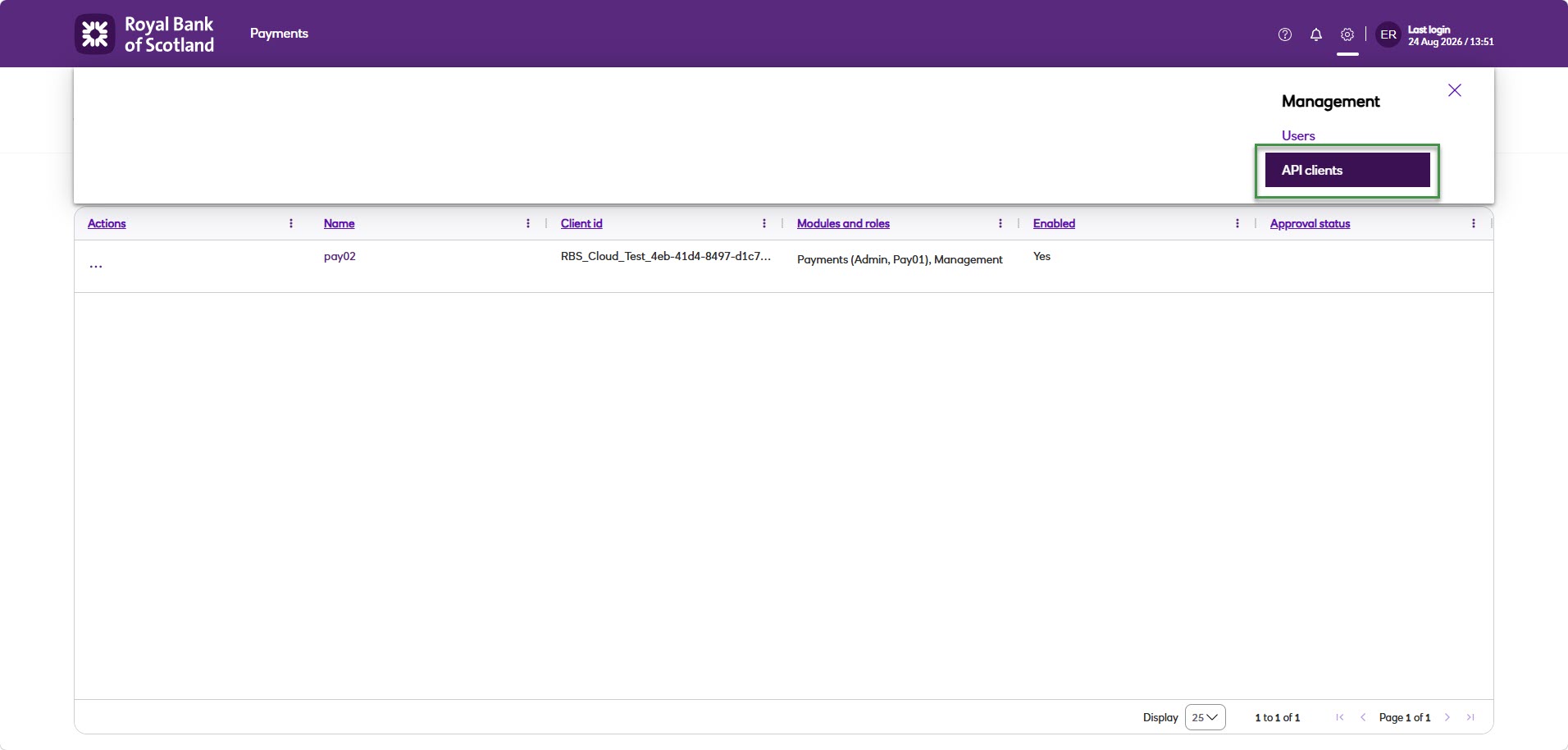
-
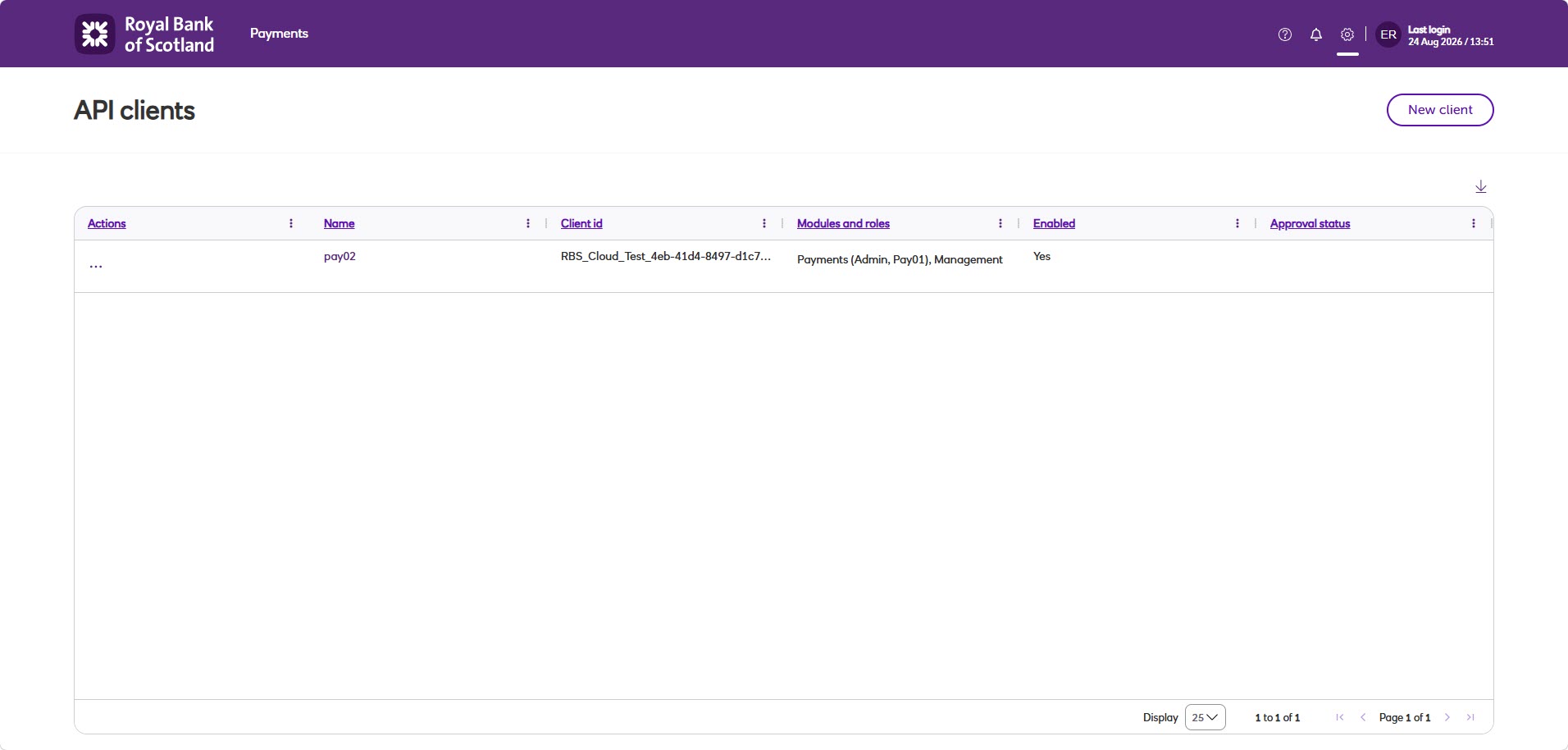
This will take you to the API Clients screen, where you will be able to add your new client.
-
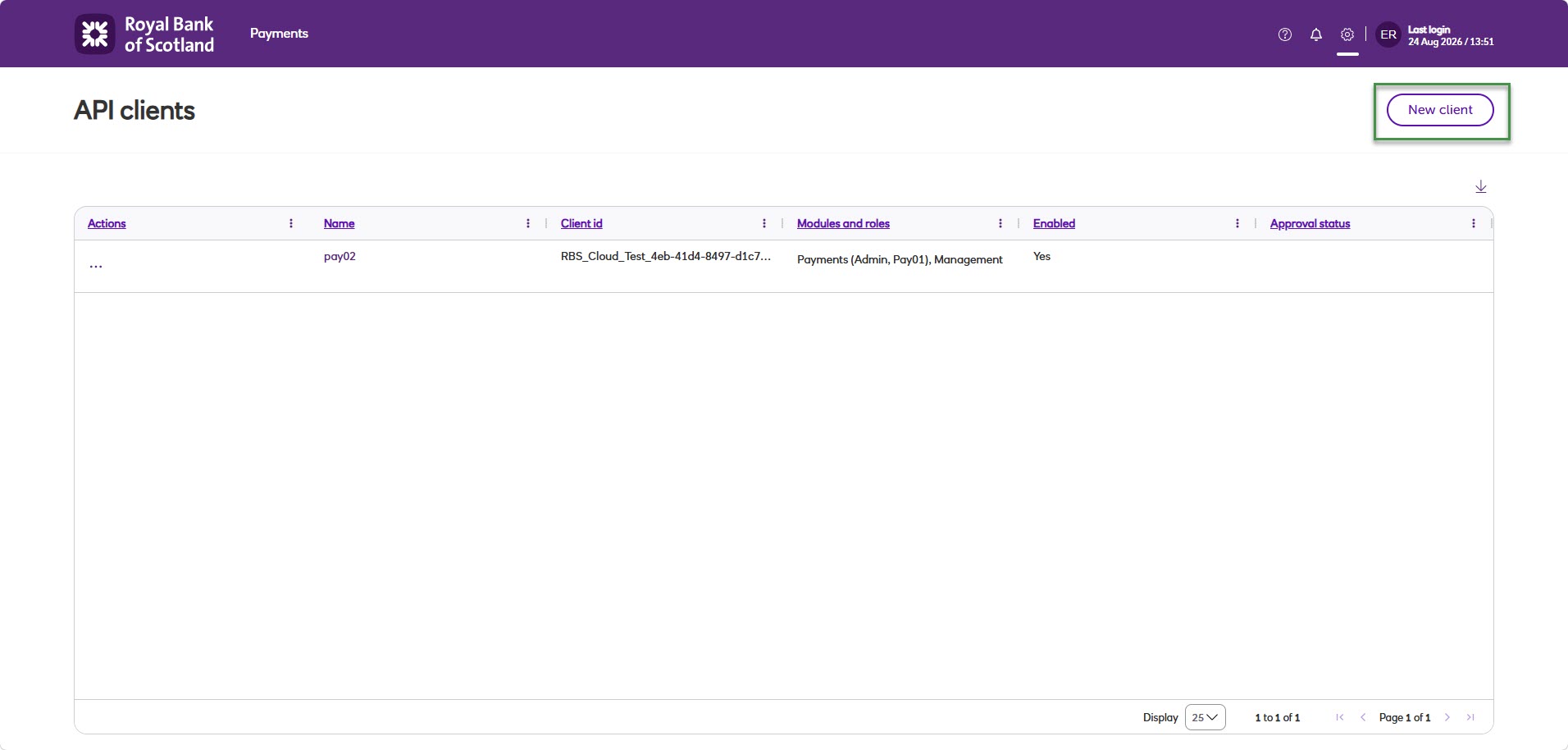
Click New client.
-
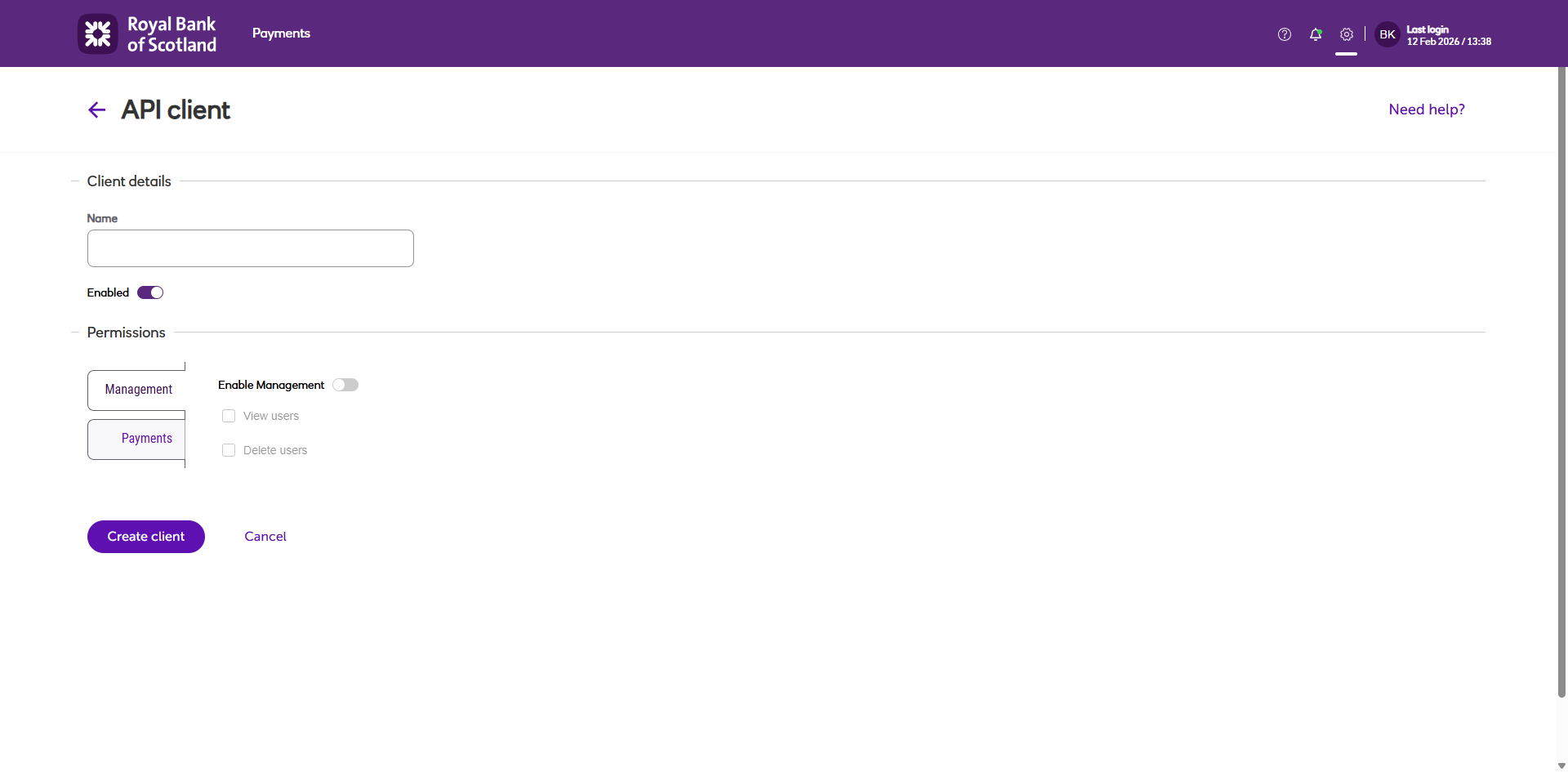
This will take you to the API Client setup screen.
-
Enter the Name as a minimum.
-
Use the slider checkbox for the Enabled field to turn the client on. Switch it off if you plan to enable it later.
-
For each module listed select to enable a module.
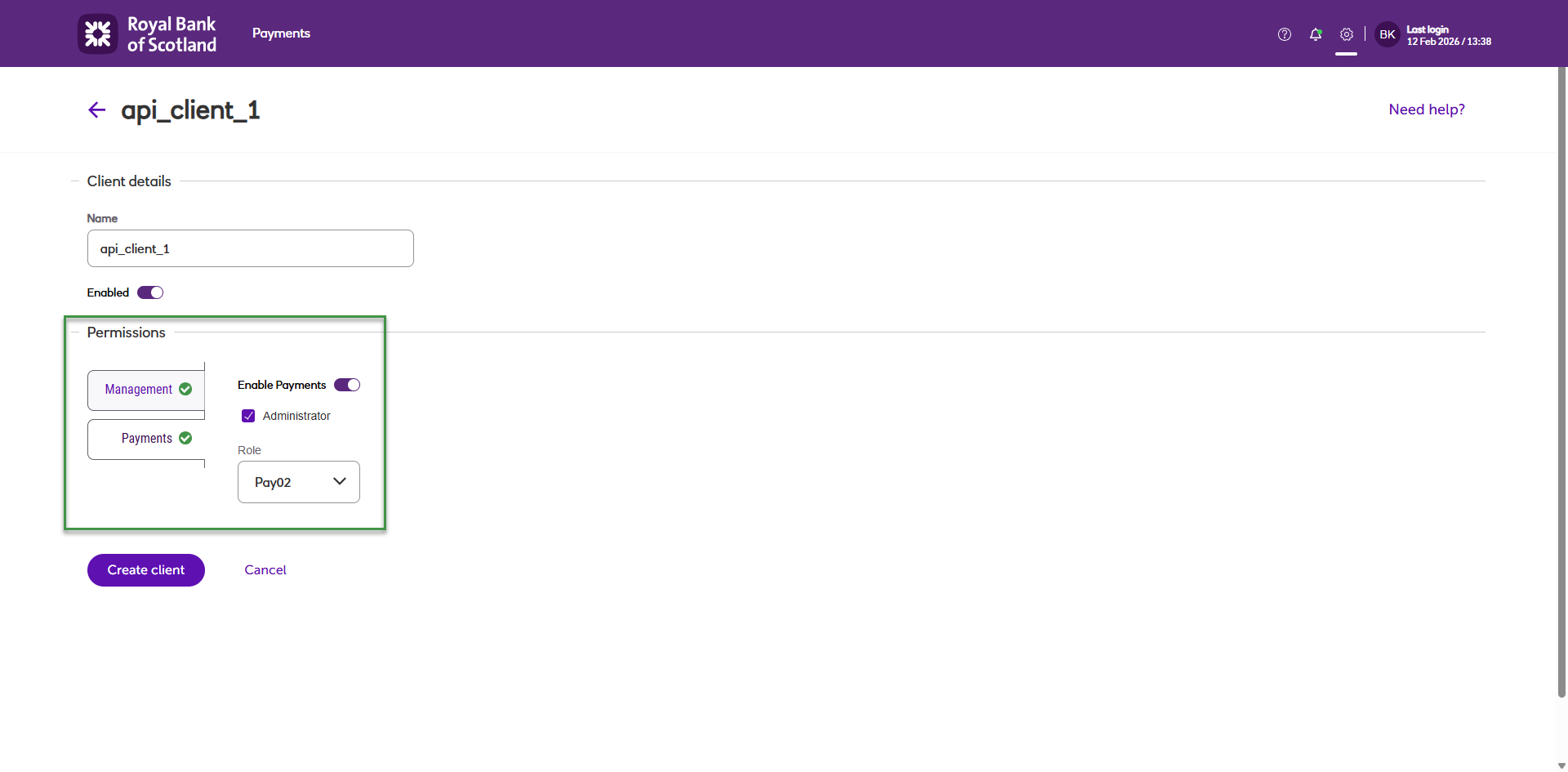
- You can tick the Administrator option if you wish this client to have access to the module level administrator permissions, refer to module documentation for more details.
- Once you have completed all of these steps, click Create client. This will add your client to the list of clients set up in the system.
Enable/disable an API client
-
Navigate to the Settings menu.
-
Click on API Clients.
-
Click on the Name of the client you wish to edit.
-
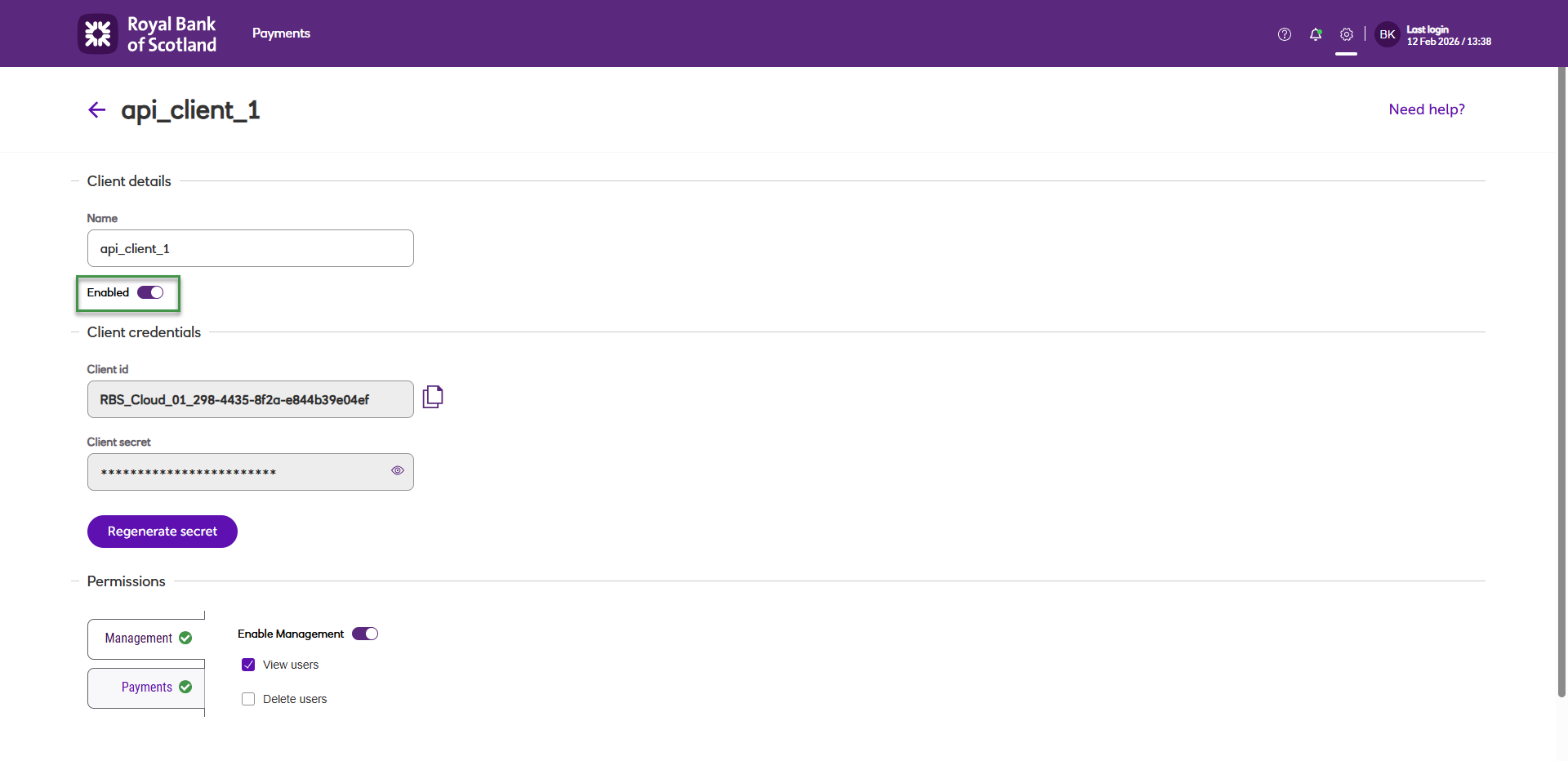
Use the slider checkbox for the Enabled field to turn the client on/off.
Edit an API client's details
-
Navigate to the Settings menu and select API Clients under Management.
-
Click on the Name of the client you wish to edit.
-
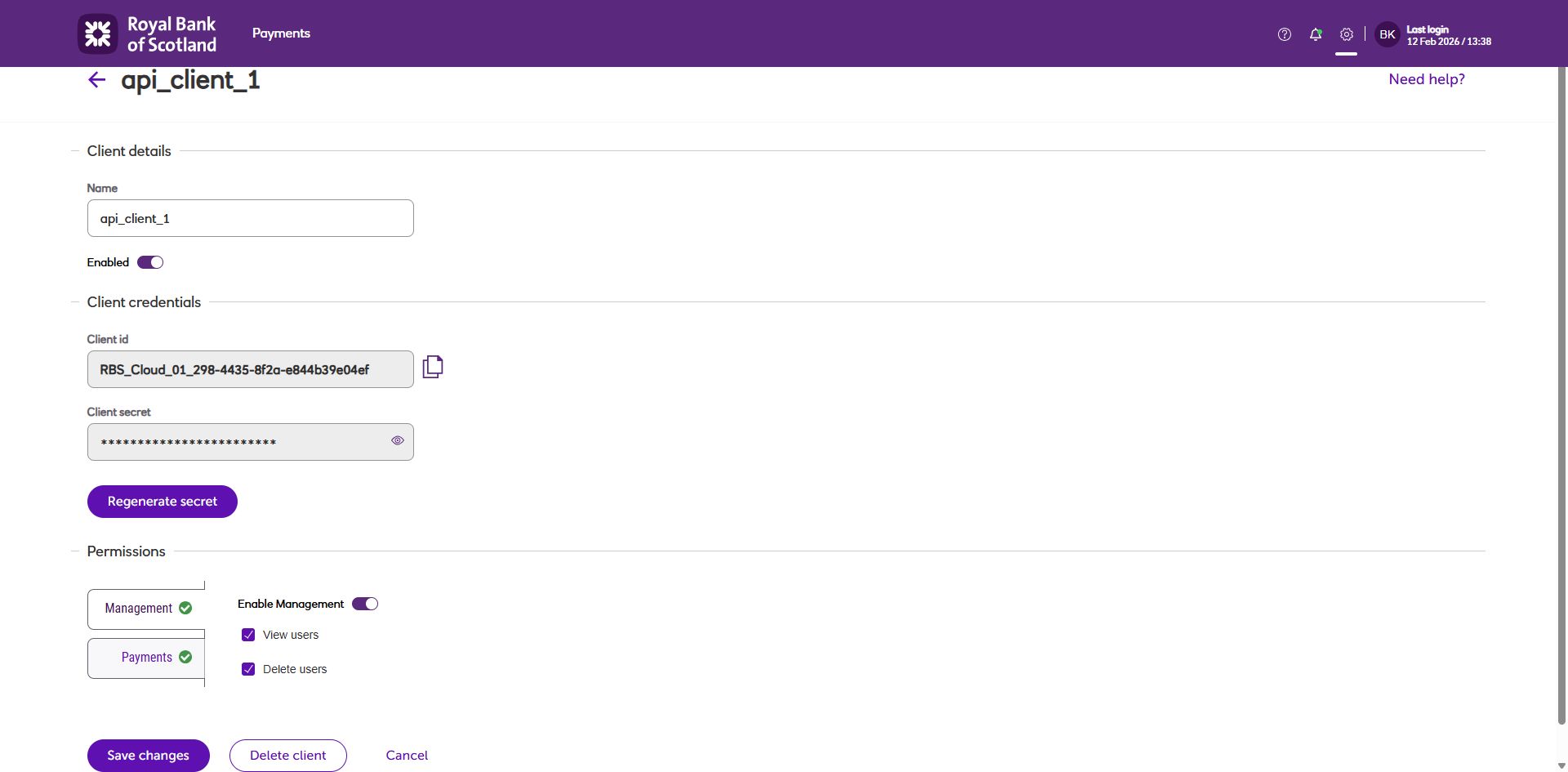
The client details are displayed.
-
Update fields as required, then click Save changes.
Delete an API client
-
Navigate to the Settings menu and select API Clients under Management.
-
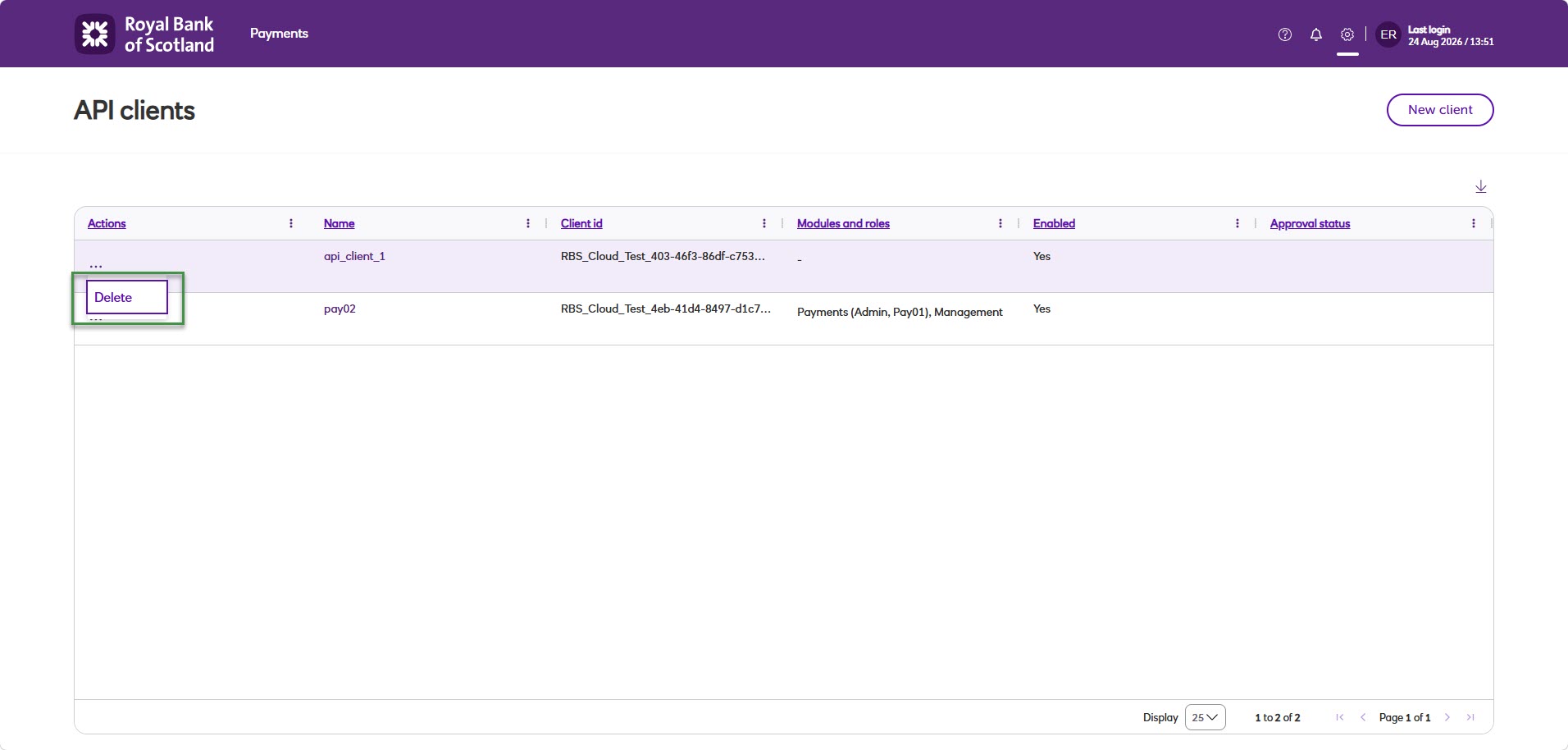
Click on the actions icon ••• to the left of the client you wish to delete.
-
Click Delete.
-
A message will be displayed to confirm the deletion.
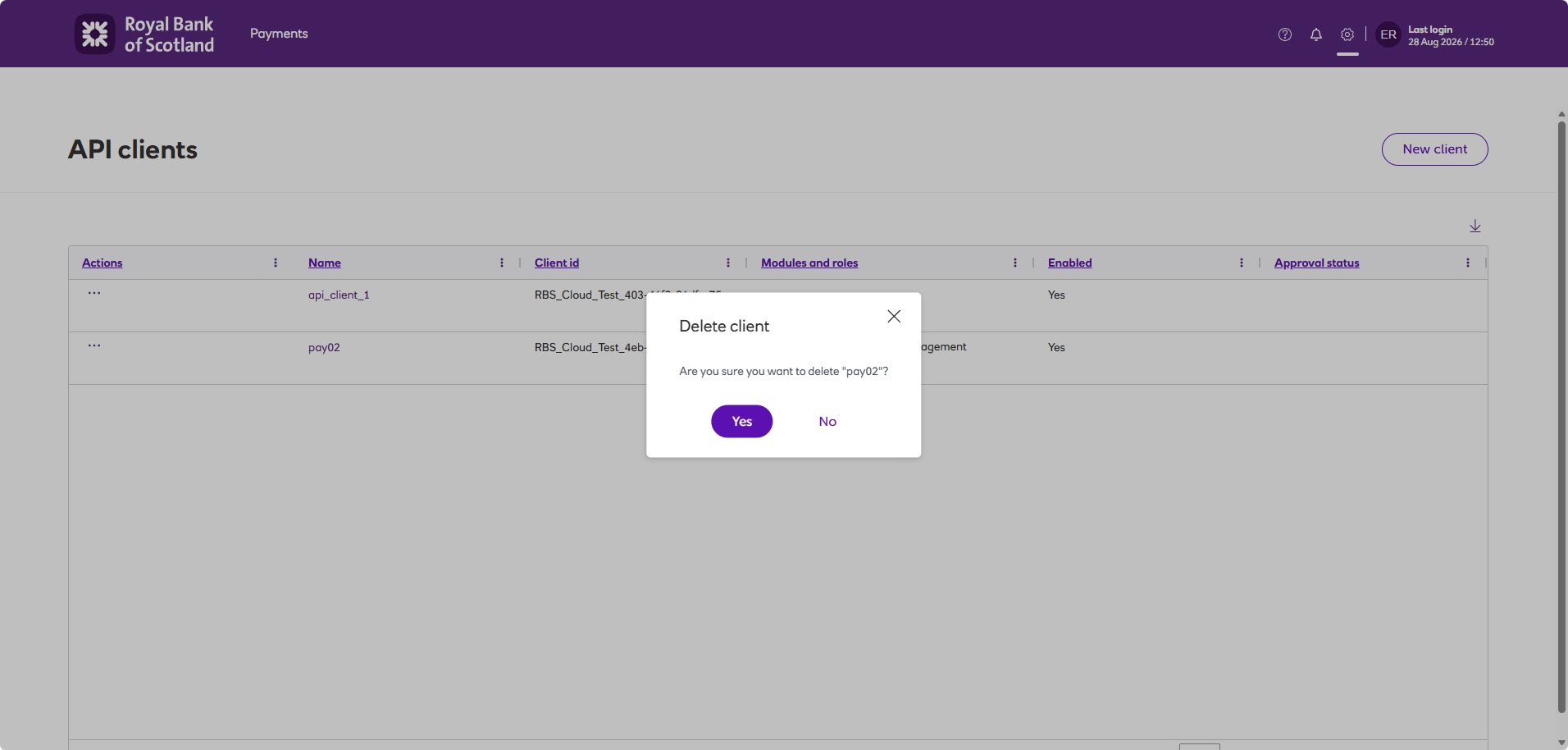
It is also possible to delete a user from the API Client page once a client has been selected.
View a client id and secret
-
Navigate to the Settings menu and select API Clients under Management.
-
Click on the Name of the client you wish to view.
-
Within Client credentials, click on the eye icon to reveal the client secret.
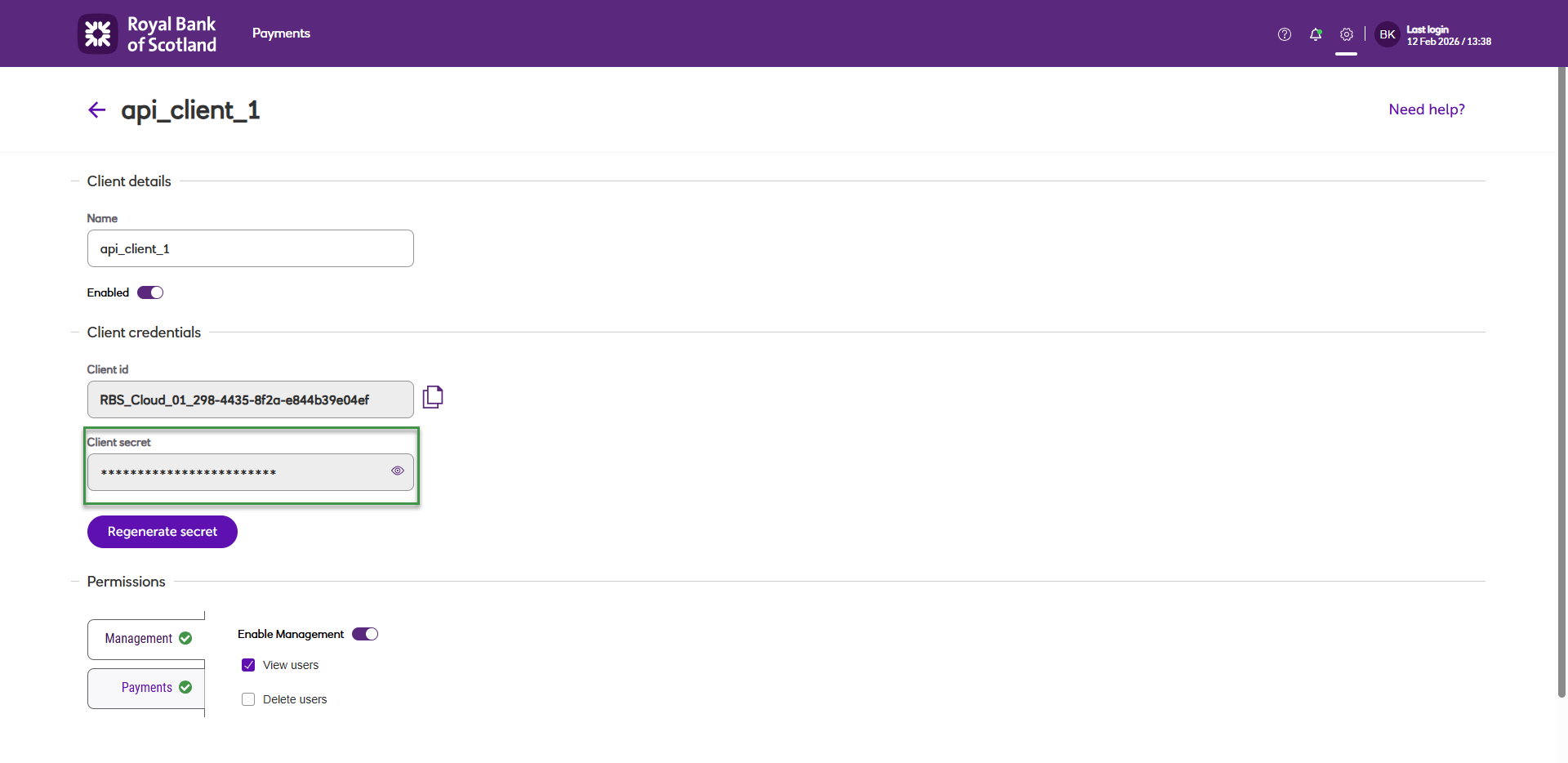
-
If you have MFA enabled then you will need to your enter your OTP (one time passcode).
Regenerate a secret
-
Navigate to the Settings menu and select API Clients under Management.
-
Click on the Name of the client you wish to regenerate the secret for.
-
Within Client credentials, click on Regenerate secret.
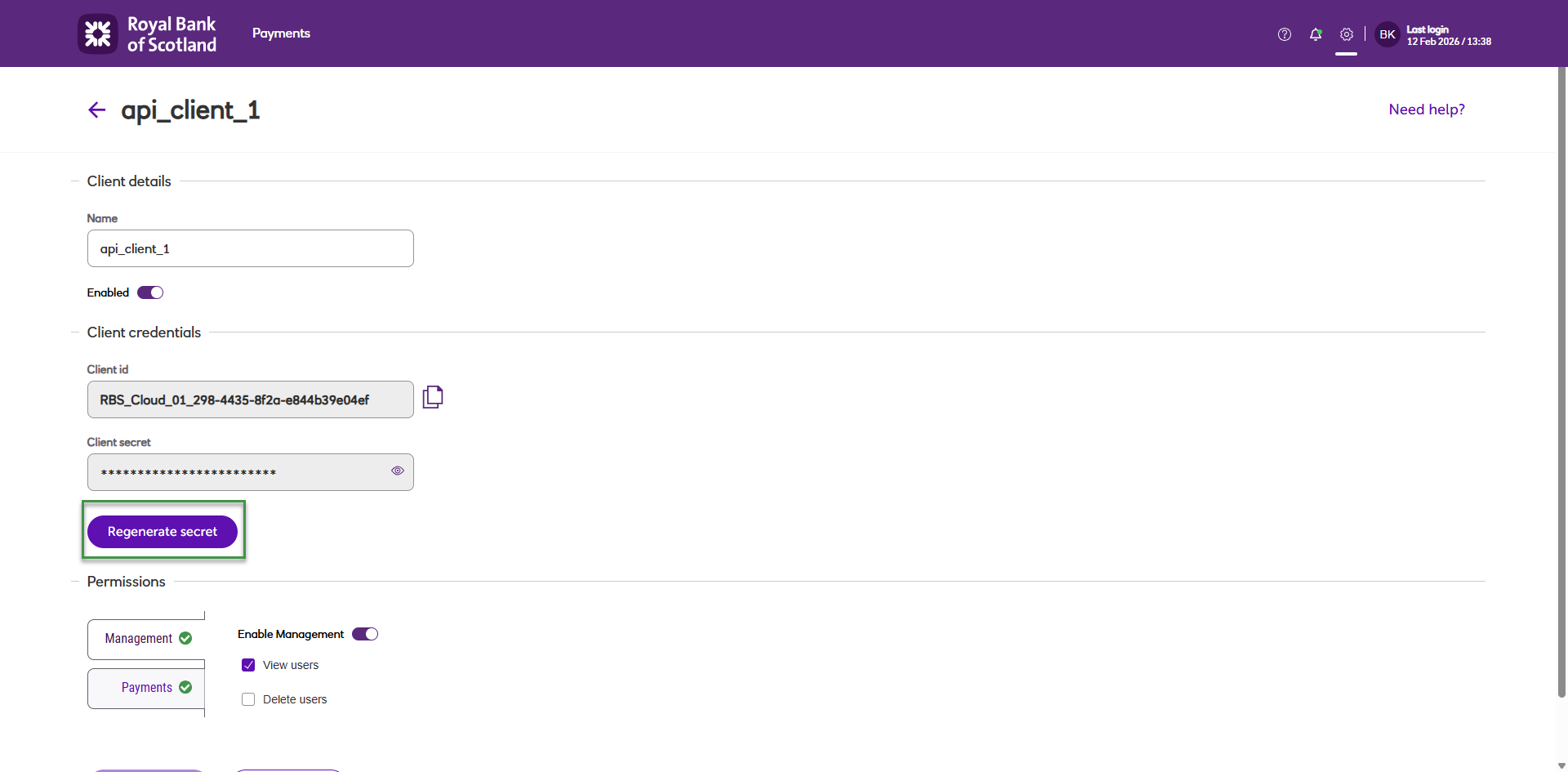
-
If you have MFA enabled then you will need to enter your OTP (one time passcode).
-
The new secret will be displayed for 10 secs before it is hidden on the screen (for security reasons).
Multi admin
Multi admin is an additional feature and if enabled on your account, administrator approval is required on any actions before they come into effect. Actions include creating, updating and deleting an API client and also regenerating a secret.
Multi admin ensures that a single administrator can't make changes by themselves and that multiple administrators are always required. It is set at account level and to enable, requires at least two administrators with user management permissions.
Note
The Manage modules privilege is also required for a user to assign modules to an API client.
Multi admin works as follows:
-
Administrator 1, for example, creates an API client and a change request is generated. At this point they have the option to reject their changes or continue with their change request and return to the API Clients screen.
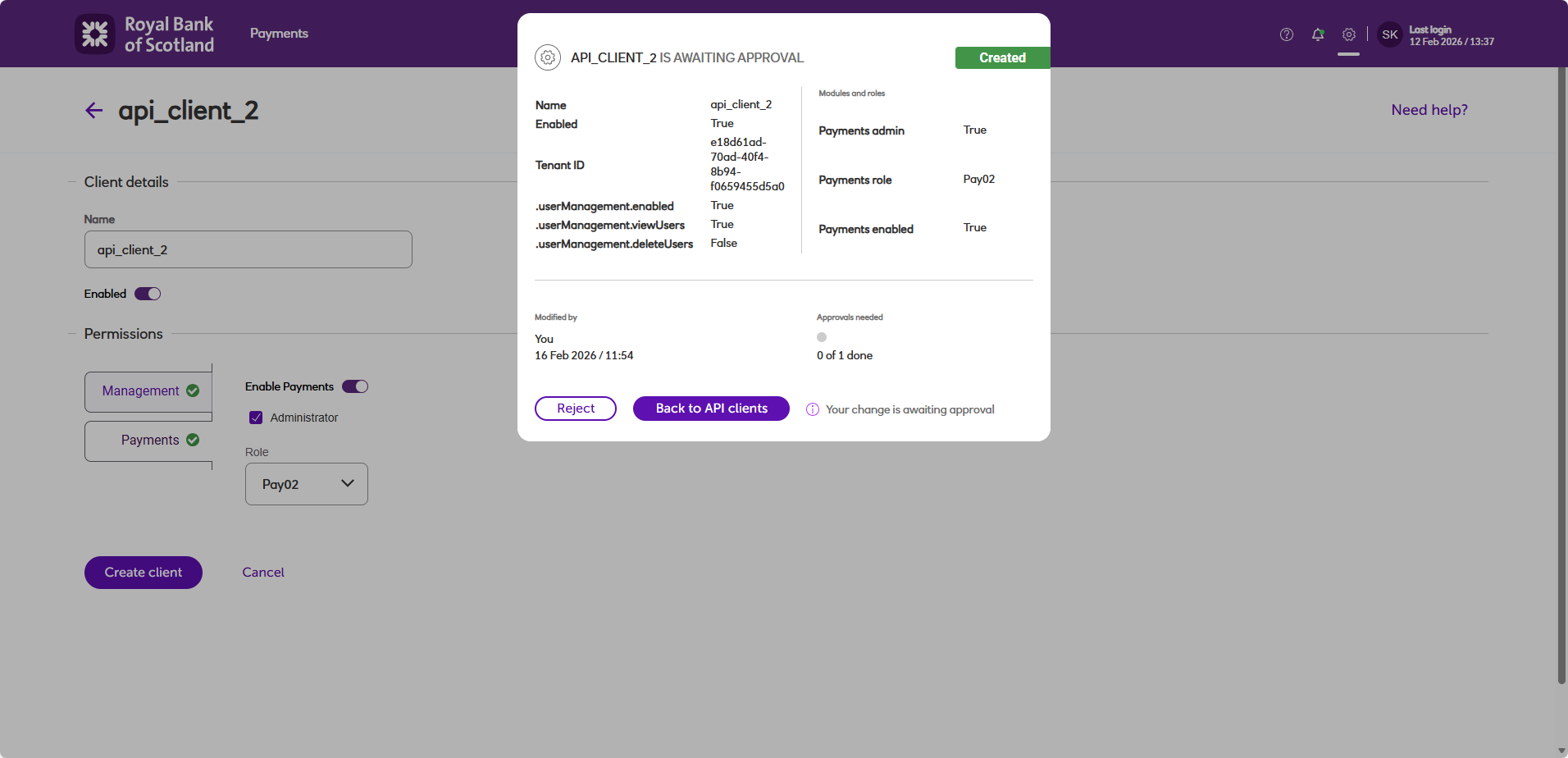
-
Administrator 1 or administrator 2 clicks Start reviewing to review any pending change requests.
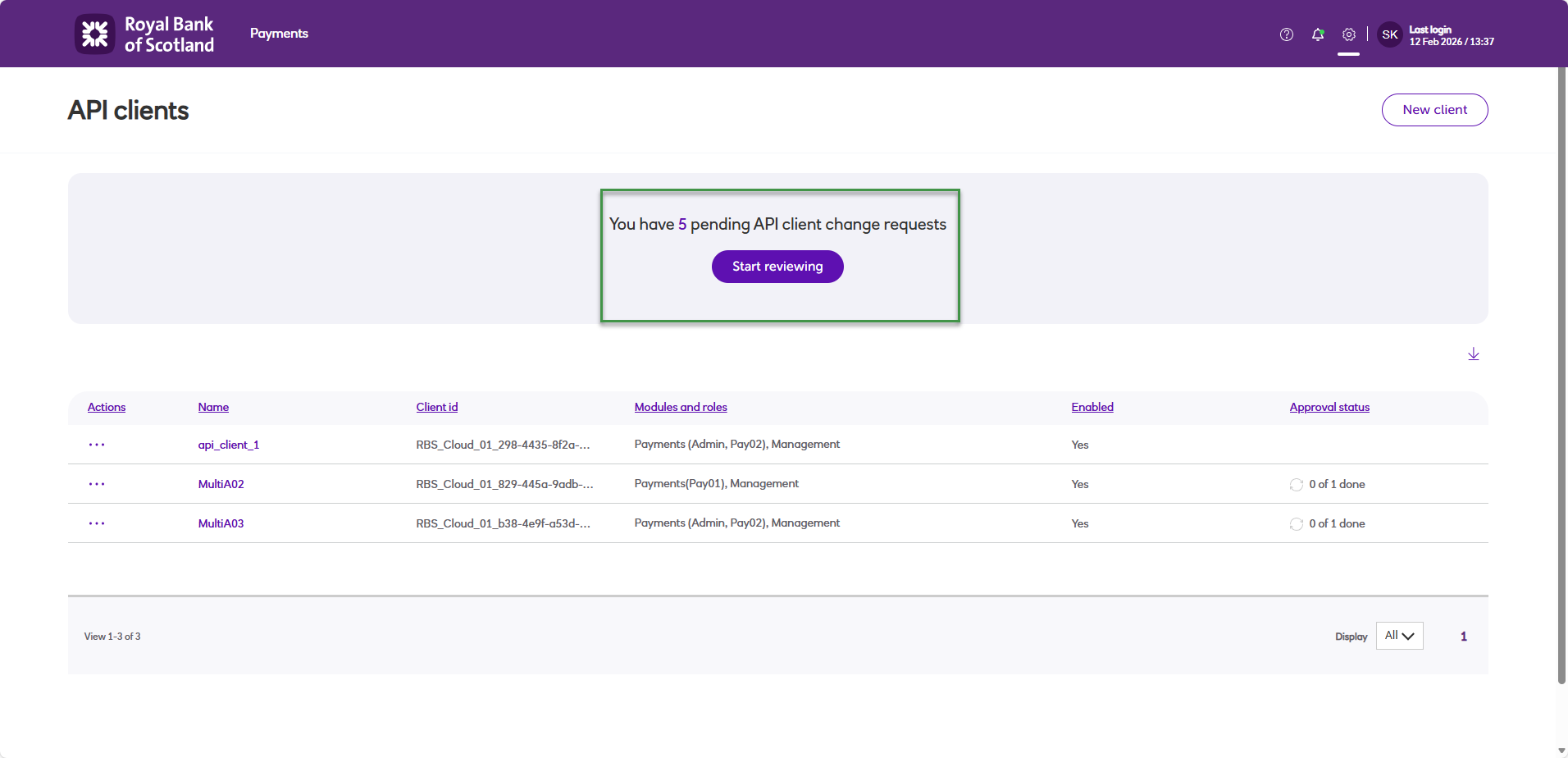
-
Administrator 1 (who created the API client) has the option to reject the change.
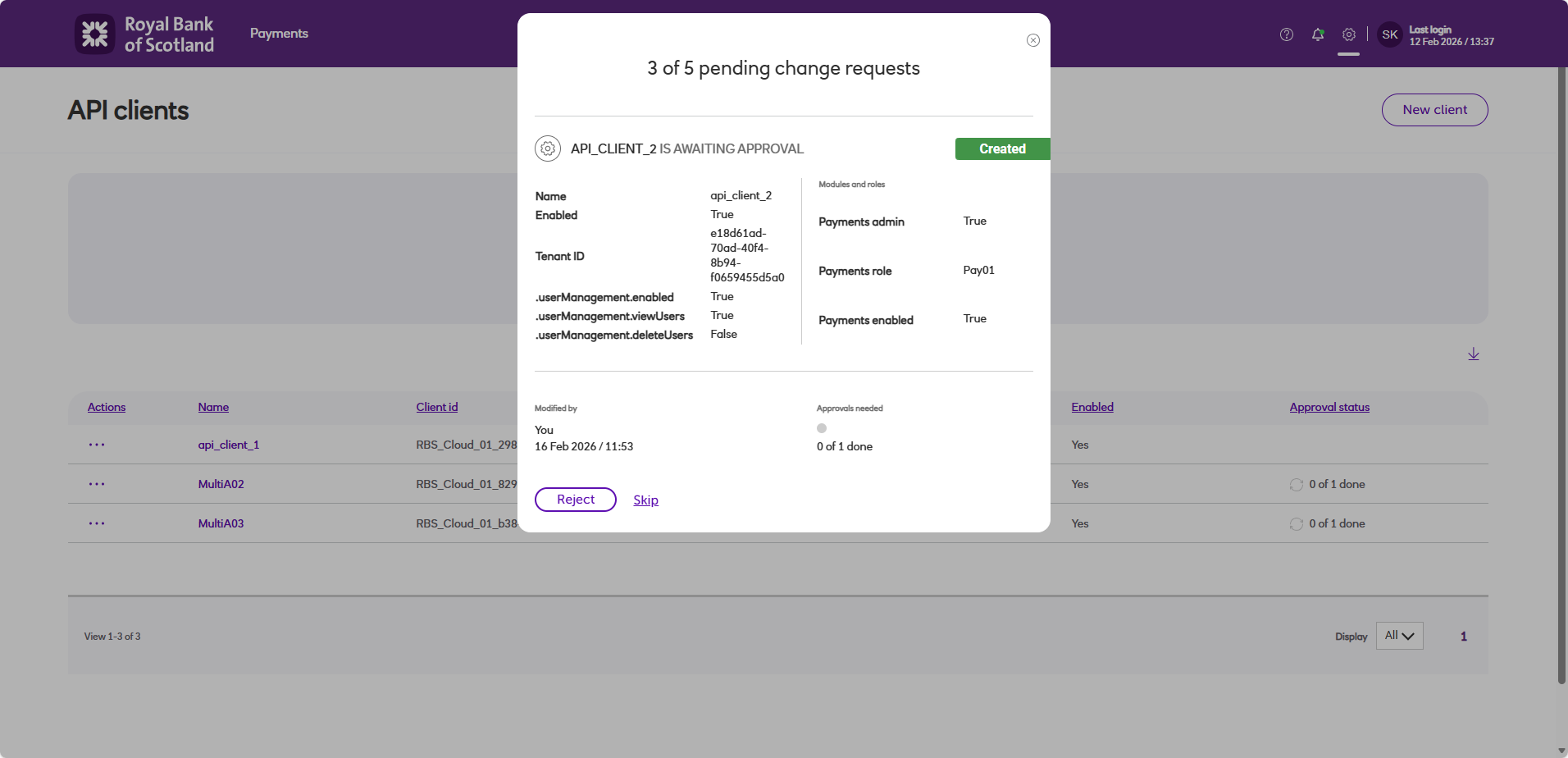
-
Administrator 2 has the option to approve or reject the change.
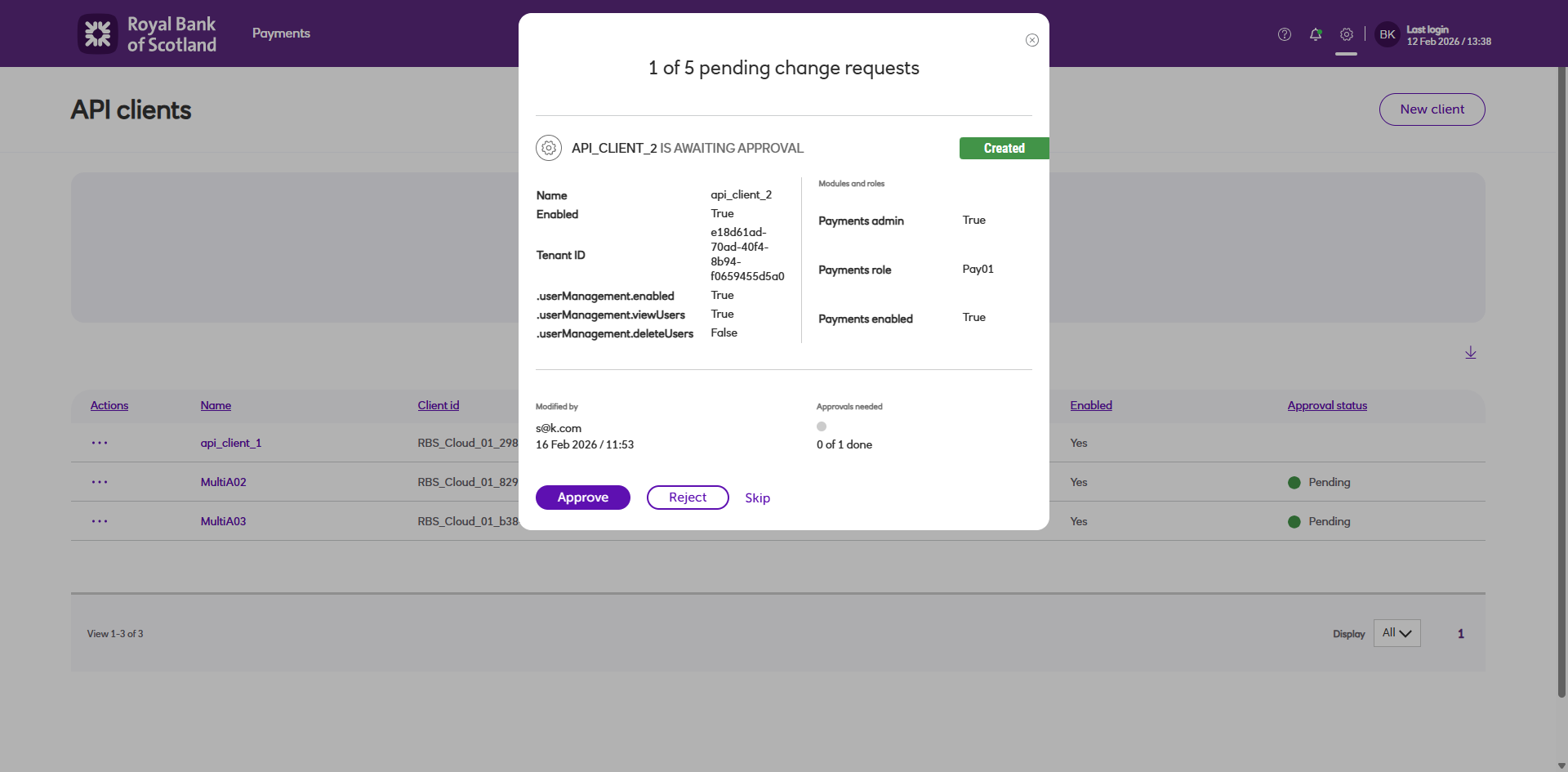
-
Once approved the change comes into effect.
Change requests can also be reviewed when viewing an API client's details.
Next steps
Drive
You will need the API client details when installing and configuring Drive. For more information, see the sections Installing Drive and Configuring Drive.
Autopay Bacs API
OAuth2 is used to authenticate API access for integration with Autopay Online Plus. Click here for more details.
Updated 9 days ago